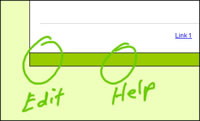
This Help page is available by clicking the invisible "Help" link on your web page as shown below.
Editing

To edit your page, click the invisible "Edit" link located in the lower left corner of this page as
shown in the above image.
A small "Edit" box will appear when your mouse is over the link.
Once you're in the edit area, you can modify text, add a new image and change the background color.
After you make changes to your page and click the Submit button, you will be taken to an "Update Completed" page.
Select the "Click Here to Continue" link to close the page. You will be returned to your page.
Press and hold down the Ctrl button, then tap F5 to
"Refresh" your page to see your new changes.
Tip: Internet Explorer allows you to click the light gray area and hit Enter to submit your new changes. However, when working with bulleted lists, you must click the Submit Changes button.
Create Bold text
Place the tag <strong> before the desired words you would like see bold and </strong> after it.
Example
The man on the island had <strong>two days</strong> to find the treasure.
Create Italic text
Place the tag <em> before the desired words you would like see italic and </em> after it.
Example
The man on the island had <em>two days</em> to find the treasure.
Creating Bold and Italic text
Place the tags <em><strong> before the desired words you would like see italic and </strong></em>
after it.
Example
The man on the island had <em><strong>two days</strong></em> to find the treasure.
Uploading an image for your Web page or Coupon
In order to insert an image on your Web page or Coupon, the image must be uploaded first.
To do that, first log into your Editing page and locate the "Upload New Image" section.
Click the Browse button to locate the image on your computer.
Locate the folder where you saved the image you want to use.
Select the desired image and click the OPEN button.
A path to your new image will appear in the text field.
Click the "Submit Changes" button at the bottom of the page.
Your new image will be uploaded to the folder named: fpimg
Inserting an image on your Web page or Coupon
As mentioned above, the image for your Web page or Coupon must be uploaded first.
Log into your Editing page and locate the section where you want your image to appear.
If you want to insert an image within a text area, use the following line of HTML code.
<img src="fpimg/image.jpg">
Where image.jpg is to be replaced with the name of the image that was just uploaded. You can also enter the name of a previously uploaded image if you prefer.
Example:
This is sample text.
<img src="fpimg/redbox.jpg">
This is more sample text.
The above text will display like this:
This is sample text.

This is more sample text.
Make sure the image will fit properly on your page
If the image size is slightly larger than the area where it is to be viewed, you can always add "your own" height and width code to make it fit - as follows:
<br><br><img src="fpimg/image.jpg" width="400" height="275"><br /><br />
If the image needs to be centered, right or left, include the additional "bold"code shown below:
<div align="center"><br><br><img src="fpimg/image.jpg" width="500 height="375"></div><br /><br />
Once the code is inserted, click the "Submit Changes" button at the bottom.
You will be taken to the Update Completed page.
Click the link "Click Here to Continue" to close the page.
You will be taken directly to your Web page.
The new changes will be seen immediately after "Refreshing" your page.
How to Change the Header Color
To edit your page, click the invisible "Edit" link located in the lower left corner of this page as shown in the above image.
A small "Edit" box will appear when your mouse is over the invisible edit link.
Once you're in the edit area, click the top HTML Code button. The source code will appear.
While viewing the source code, locate the word: hcolor
You will see:
table#hcolor {
background-color: #000000; (The 0's indicate the color number, in this case it's black..)
Change the #000000 number to the desired color number. Leave in the # sign and semicolon.
Here is color chart that shows the available colors you can use:
http://www.g-sale.com/help/color-chart/ (Opens in new window)
Change the Menu Color
Follow the same process above, but search for the word mcolor and then change the color number. The words hcolor, mcolor and fcolor are located near each other, so you can change them all at the same time.
Change the Footer Color
Follow the same process above, but search for the word fcolor and then change the color number. The words hcolor, mcolor and fcolor are located near each other, so you can change them all at the same time.
If you have a question or comment CLICK HERE